
...
Read moreWorkamper News | The Original Resource Of Jobs For RVers, Since 1987!
Jobs For RVers
WORKAMPING IS A ROAD WITH ENDLESS POSSIBILITIES
RV Owners
FIND A JOB
Business Owners
POST A JOB

RV
OWNERS...
WHERE DO YOU WANT TO GO TODAY?
Let us help you gain the freedom to travel wherever you want, for as long as you want, in your own RV!
Discover how you can travel indefinitely by Workamping!
BUSINESS
OWNERS...
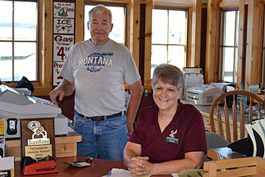
LOOKING FOR A TEMPORARY WORKFORCE?
Workampers are renowned for providing a variety of skills and experience that can improve the bottom-line of any business.
Let us help you build an awesome Workamper team!
A Few Of Our Featured Employers...
















Our Members Had This To Say...

Can't say enough positives!
We are finally doing it! We found several jobs listed in the latest edition of the Workamper News magazine, submitted our Awesome Applicants Resume to two different jobs for next October, and both offered interviews...

Madonna and Ron White
New Workampers
You Make Life Easier for Us
WOW!! We already have entertained 4 applicants!! And have hired our new Workamper! You guys are off-the-charts effective in what you do, and that is you make life so much easier for us!!

Dann & Nora Weems
New Employers
Made Our Dreams Come True!
Great site for fulltimers, and those new & experienced to Workamping! This site has made our dreams come true!

Sue & Gene Tisdale
New Workampers
WHAT IS A WORKAMPER?
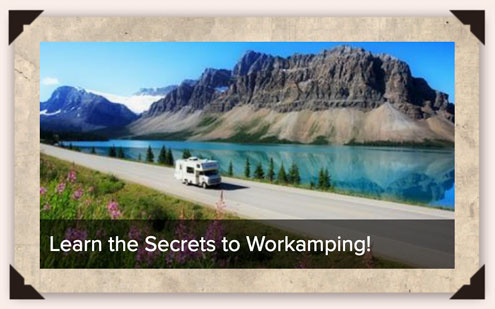
Workampers are adventuresome individuals, couples, and families who have chosen a lifestyle that combines ANY kind of part-time or full-time work with RV camping.
Workampers can be solo RVers, couples, or families traveling and living in motorhomes, fifth wheels, travel trailers, buses, campers, vans, etc.
Are you a Workamper? If you work in exchange for something of value and sleep in a RV at night, you are indeed! From coast to coast, there are many positions available for Workampers—or those still dreaming of an RV lifestyle—to work and play on the road.
WE ARE THE #1 RESOURCE OF JOBS FOR RVERS
Since we coined the term "Workamper" in 1987, we've been focused on finding jobs for RVers - including part-time or full-time, seasonal or year-round positions in the U.S. and Canada.
Typical positions include campground hosts, RV park groundskeeping & maintenance, housekeeping, reservations & office work for campgrounds and RV parks looking to hire great people.
But when you begin your research, you'll see that the opportunities available are varied throughout multiple industries and offer a variety of compensation packages (usually including an RV site).
The Workamping community is growing and with this welcome growth, Workamper News is evolving to meet the needs of new travelers ready to hit the road and seasoned vets looking to expand their adventures with RVing jobs along the way.
So, whether you’re a retiree who loves volunteering in campgrounds across the country, an RVer looking for income on the road, a young adult looking for a seasonal gig or just about everything in-between, Workamper News is here to help you with RVer job listings, resume tools, employer reviews, education & resources, information, inspiration, and so much more!
Or, if you are a business owner or HR manager looking for a resource of quality folks to fulfill the staffing needs of your operation, Workamper News is here to help you promote your opportunities and learn how to connect with the best Workampers for your team!

Workamper News has been the premier source for connecting RVers and potential employers for more than three decades!
GET STARTED TODAY
Jobs For RVers
WORKAMPING IS A ROAD WITH ENDLESS POSSIBILITIES!
RV OWNERS...
WHERE DO YOU WANT TO GO TODAY?
Let us help you gain the freedom to travel wherever you want, for as long as you want, in your own RV!
Discover how you can travel indefinitely by Workamping!
BUSINESS OWNERS...
LOOKING FOR A TEMPORARY WORKFORCE?
Workampers are renowned for providing a variety of skills and experience that can improve the bottom-line of any business.
Let us help you build an awesome Workamper team!
A Few Of Our Featured Employers...
Our Members Had This To Say...
Can't say enough positives!
We are finally doing it! We found several jobs listed in the latest edition of the Workamper News magazine, submitted our Awesome Applicants Resume to two different jobs for next October, and both offered interviews...
Madonna and Ron White
New Workampers
You Make Life Easier for Us
WOW!! We already have entertained 4 applicants!! And have hired our new Workamper! You guys are off-the-charts effective in what you do, and that is you make life so much easier for us!!
Dann & Nora Weems
New Employers
Made Our Dreams Come True!
Great site for fulltimers, and those new & experienced to Workamping! This site has made our dreams come true!
Sue & Gene Tisdale
New Workampers
WHAT IS A WORKAMPER?
Workampers are adventuresome individuals, couples, and families who have chosen a lifestyle that combines ANY kind of part-time or full-time work with RV camping.
Workampers can be solo RVers, couples, or families traveling and living in motorhomes, fifth wheels, travel trailers, buses, campers, vans, etc.
Are you a Workamper? If you work in exchange for something of value and sleep in a RV at night, you are indeed! From coast to coast, there are many positions available for Workampers—or those still dreaming of an RV lifestyle—to work and play on the road.
WE ARE THE #1 RESOURCE OF JOBS FOR RVERS
Since we coined the term "Workamper" in 1987, we've been focused on finding jobs for RVers - including part-time or full-time, seasonal or year-round positions in the U.S. and Canada.
Typical positions include campground hosts, RV park groundskeeping & maintenance, housekeeping, reservations & office work for campgrounds and RV parks looking to hire great people.
But when you begin your research, you'll see that the opportunities available are varied throughout multiple industries and offer a variety of compensation packages (usually including an RV site).
The Workamping community is growing and with this welcome growth, Workamper News is evolving to meet the needs of new travelers ready to hit the road and seasoned vets looking to expand their adventures with RVing jobs along the way.
So, whether you’re a retiree who loves volunteering in campgrounds across the country, an RVer looking for income on the road, a young adult looking for a seasonal gig or just about everything in-between, Workamper News is here to help you with RVer job listings, resume tools, employer reviews, education & resources, information, inspiration, and so much more!
Or, if you are a business owner or HR manager looking for a resource of quality folks to fulfill the staffing needs of your operation, Workamper News is here to help you promote your opportunities and learn how to connect with the best Workampers for your team!
Workamper News has been the premier source for connecting RVers and potential employers for more than three decades!
GET STARTED TODAY
RV Owners
FIND A JOB
Business Owners
POST A JOB